CMDB
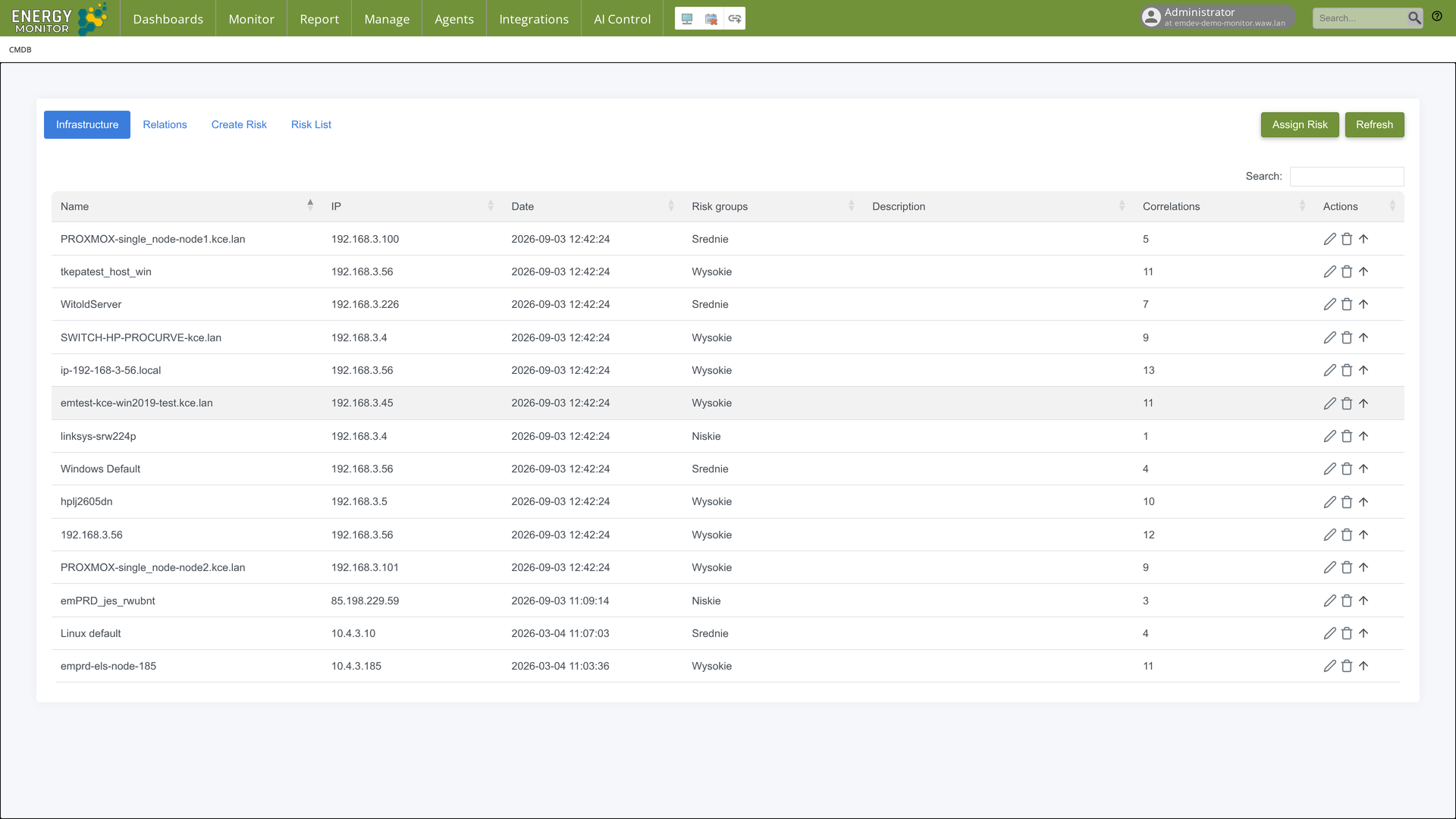
CMDB is the asset inventory of Energy Monitor, introduced in version 1.6.0. It keeps a record of monitored hosts together with the number of correlations found by AI Correlations and a risk group assigned to each asset.
CMDB is available under Manage -> CMDB, next to Scan Schedule.
Note:
After an upgrade from 1.5.x the module returns 403 for every user until an administrator
enables the cmdb_access permission for the relevant groups under
Manage -> Configuration -> Group Rights. A fresh 1.6.0 installation
has the permission enabled. See the Upgrade chapter.
Tabs
Tab |
Purpose |
|---|---|
Infrastructure |
The asset list: name, IP address, date of the last update, risk groups, description, number of correlations, actions |
Relations |
For each asset, the hosts it is correlated with and the number of correlations |
Create Risk |
Definition of a risk group: name and a range of correlation counts |
Risk List |
The defined risk groups with their ranges; each can be edited or deleted |
Assign Risk |
Assigns risk groups to assets according to the ranges, with a preview of what will be added and what removed |
The Refresh button reloads the list. The search field filters the list by any column.
Where assets come from
Assets are written to CMDB by AI Correlations with the Save to CMDB button. Each saved host becomes an asset with its IP address, the date of the save and the number of correlations found in the analysed time window. Saving again adds new entries; entries from earlier saves stay in the list with their own date, so a host can appear more than once until the older entries are deleted.
The edit action opens the asset with its description and informational fields (OS type, OS version, purpose, service agreement). The delete action removes the asset from CMDB; the monitored host itself is not affected.
Risk groups
Open Create Risk.
Enter a name and a range of correlation counts, for example
Lowfrom 0 to 3,Mediumfrom 4 to 8,Highfrom 9 upwards. Ranges should not overlap.Click Submit. The group appears in Risk List.
Open Assign Risk, select the assets (or select all) and click Apply. The dialog shows in bold the groups that will be added and struck through the groups that will be removed.
An asset whose correlation count falls into a range gets that group. Assets outside every range keep no group. After changing a range in Risk List, run Assign Risk again to apply the new ranges.
Relations
The Relations tab lists, for every asset, the destination hosts it correlates with. The list comes from the last correlation matrix saved to CMDB. It is a quick way to see which hosts tend to change state together.
Technical notes
The module is served under
/cmdband rendered inside the main interface in an iframe. When something fails inside the frame, the surrounding page still returns HTTP 200.Data is stored in OpenSearch, in the
cmdbandcmdb_relationsindices.Access is controlled by the
cmdb_accesspermission in/etc/energy-monitor/auth_groups.yml, editable from the Group Rights page.